Introduction
Registering your gateway means securely connecting your customer-managed gateway to the OpsRamp SaaS platform. This connection allows your gateway to:
- Discover resources in your environment
- Collect monitoring data
- Send alerting information
All communication between your gateway and the OpsRamp SaaS platform uses secure protocols, ensuring data integrity and confidentiality.
Methods of Gateway Registration
You can register your gateway using the OpsRamp Bootstrap Tool with a single command. There are two main connection methods:
- Direct Connection
- Your gateway connects directly to the OpsRamp cloud servers.
- Use this method if your gateway has direct internet access without network restrictions.
- This is the simplest and most common registration method.
- Proxy Connection
- Your gateway connects to OpsRamp servers through a proxy server.
- Choose this method if your network requires routing traffic through a proxy for security or compliance reasons.
- The proxy acts as an intermediary between your gateway and the OpsRamp SaaS platform.
Registering the OpsRamp Classic Gateway
After creating a Collector Profile, you can register your Gateway in two ways:
- Web User Interface
- Administration Console
Method 1: Register via Web User Interface
To register the gateway using a web browser:
Step 1: Log in to Gateway Administration Web UI
Open a web browser and enter:
https://<Gateway IP>:5480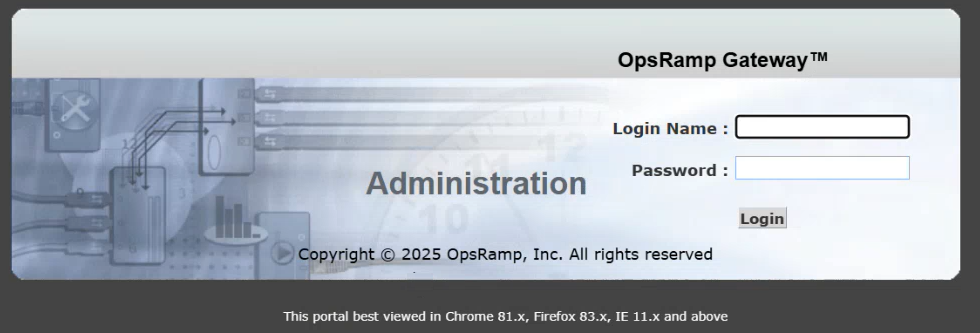
Log in with the default credentials, available in the OpsRamp portal under Setup > Account > Collector Profile.
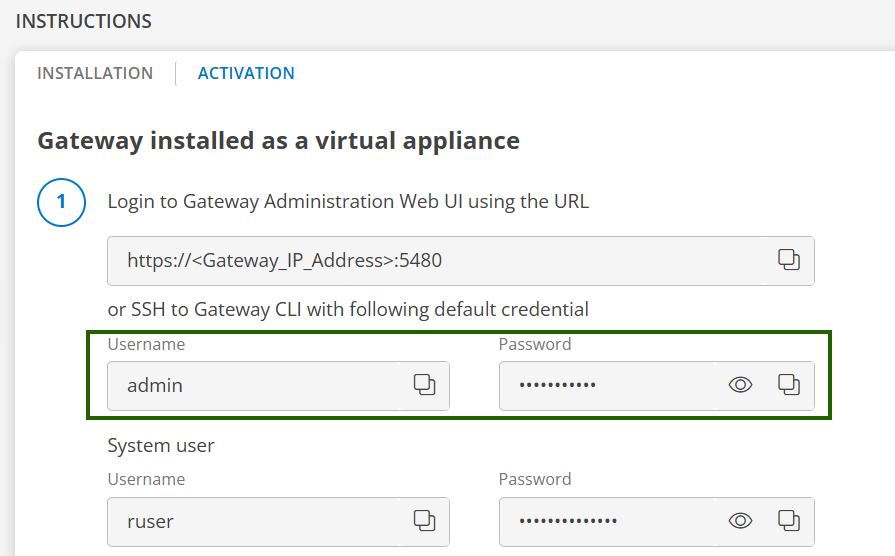
Step 2: Change the password
When accessing the Gateway Admin UI for the first time, you will be prompted to change the password immediately.
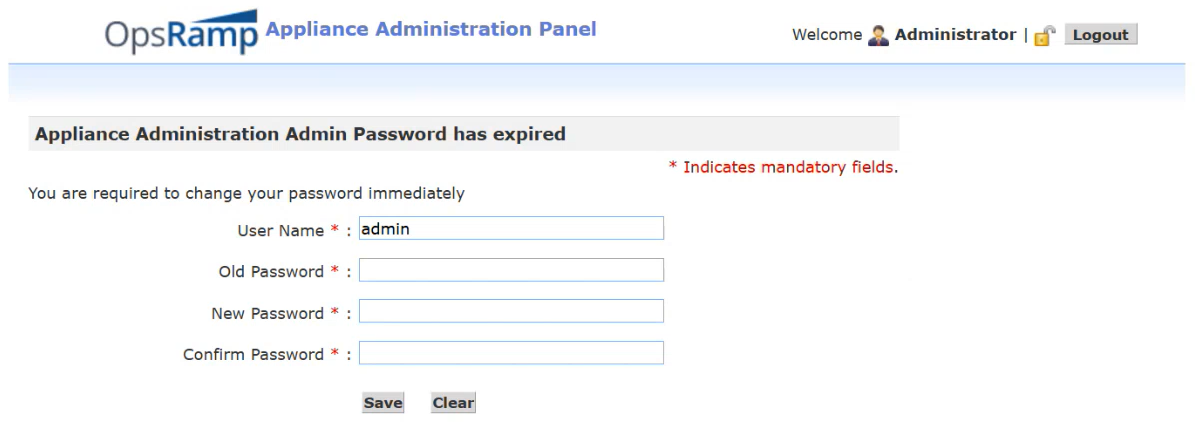
Note
For security best practices, it is strongly recommended to change the default system password right after provisioning the Gateway. This helps prevent unauthorized access.Step 3: Configure Network Settings
Log in to the Gateway Web UI again using your new credentials.
In the Appliance Administration Panel, navigate to Administration Menu > Network.
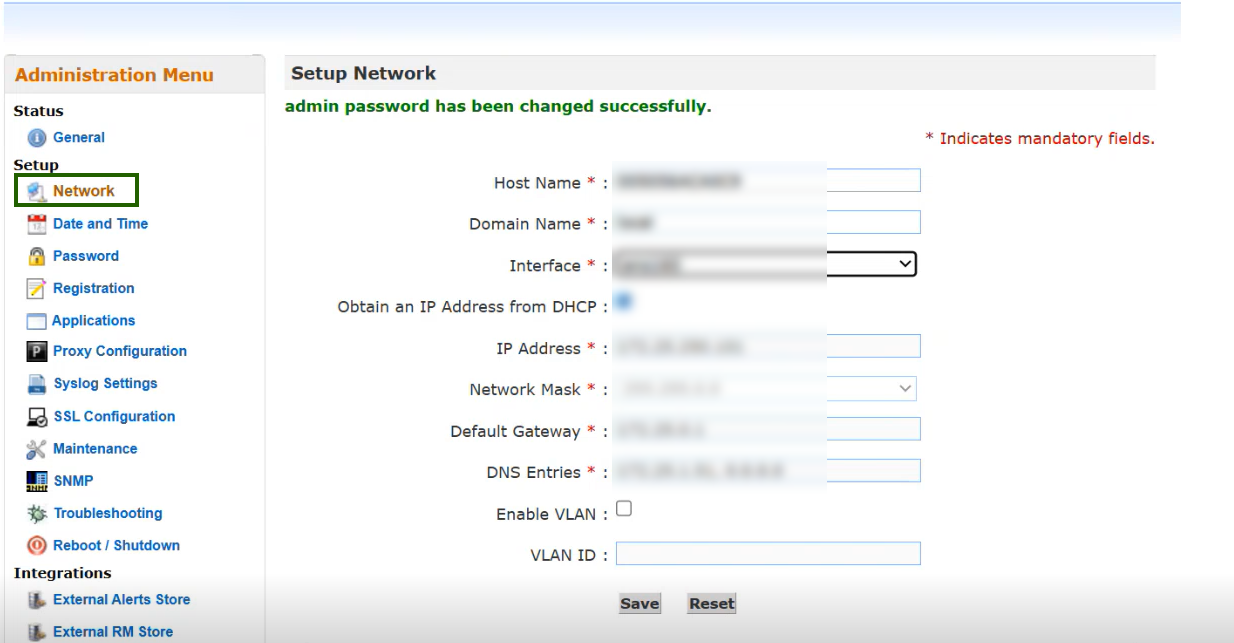
Varify that the Host Name, IP Address, and all network settings are configured correctly.
To use a proxy, navigate to Network > Network Connection Settings.
- Default setting is Direct connection to the Internet.
Step 4: Register the Gateway
- Navigate to Administration Menu > Registration.
- Enter the Activation Key and OpsRamp Server details in the registration page. Click Activate.
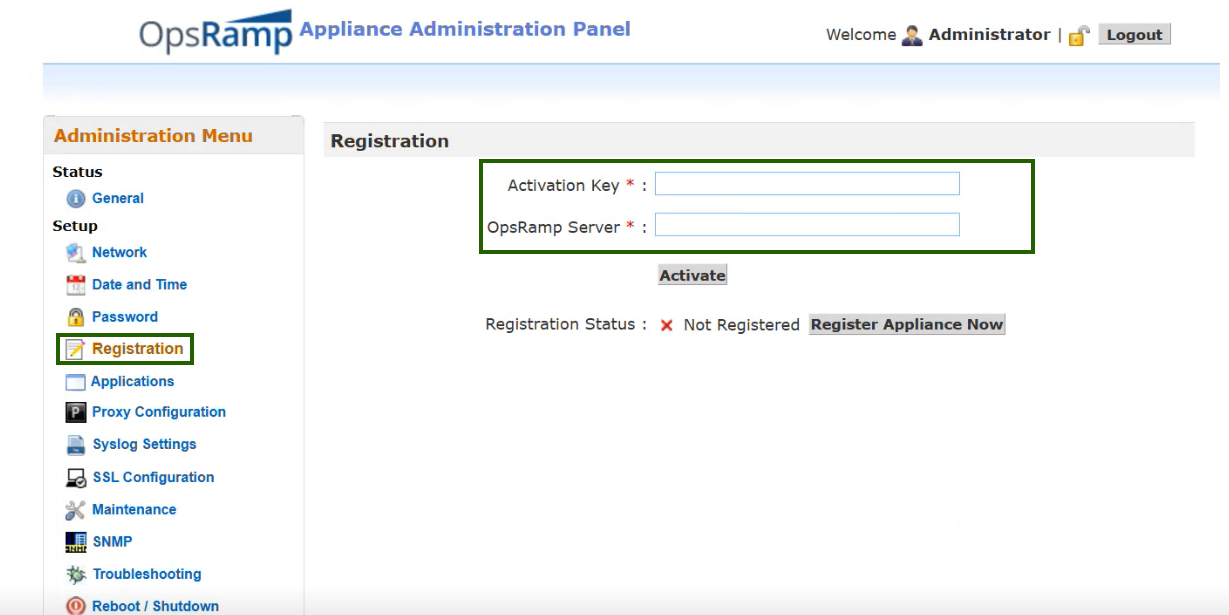
To get the the Activation Key and OpsRamp Server details, navigate to Setup > Account > Collector Profiles from OpsRamp portal.
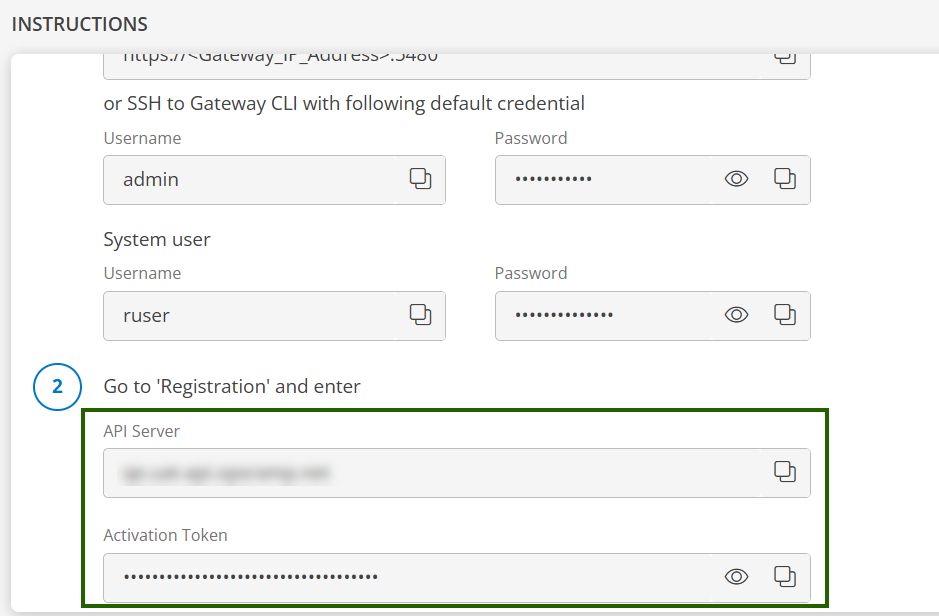
Step 5: Verify Registration
- Registration may take a few minutes.
- Navigate to Setup > Accout > Collector Profiles to confirm the Gateway is connected.

Method 2: Register via Administration Console
To register the Gateway using the administration console:
Step 1: Log in to the Gateway Virtual Machine (VM)
Start the Gateway VM.
Log in with the default credentials, available in the OpsRamp portal under Setup > Account > Collector Profile.
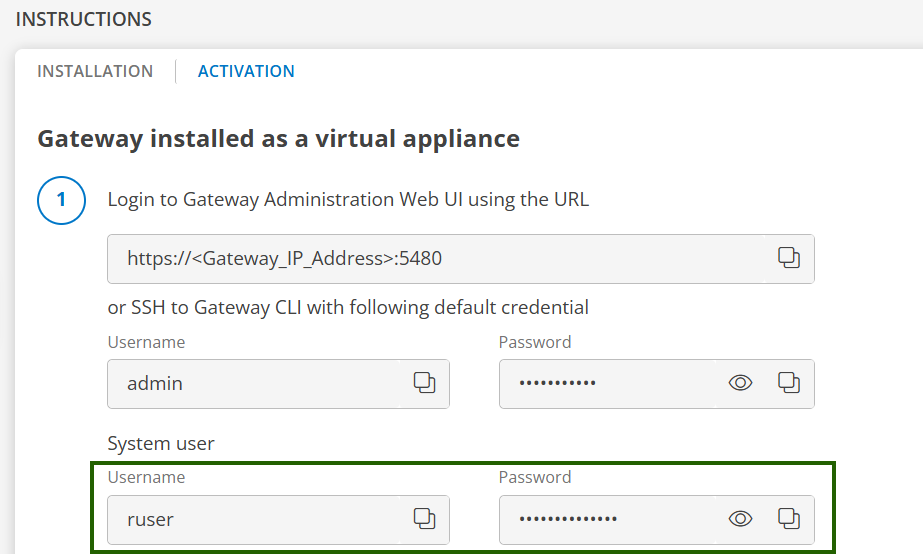
On your first login, the console will require you to change the default password. Enter a new password and confirm it to complete the setup.
Note
For security best practices, it is strongly recommended to change the default system password right after provisioning the Gateway. This helps prevent unauthorized access.
Step 2: Verify Gateway Status
- Navigate to the General section under the Administration menu in the left pane.
- Confirm that:
- Registration Status = Not Registered
- Tunnel Status = Not Established
Step 3: Configure Network Settings
- Go to the Network tab
- Varify that the Host Name, IP Address, and all network settings are configured correctly.
- To use a proxy server, press CTRL+P to open Proxy Settings.
- By default, the Gateway uses a direct internet connection.
Step 4: Register the Gateway
- Navigate to the Registration tab.
- Enter the Activation Key and OpsRamp Server details in the registration screen.
To get the the Activation Key and OpsRamp Server details, navigate to Setup > Account > Collector Profiles from OpsRamp portal.
Step 5: Verify Registration
- Registration may take a few minutes.
- Navigate to Setup > Accout > Collector Profiles to confirm the Gateway is connected.